How to use Favorite Meals
Favorite meals store combinations of foods you often eat together. When logging, you load all the items at once instead of searching for them one by one.
Favorite meals are a Diablesse Pro feature.
Favorite foods vs. favorite meals
| Type | What it is | When to use |
|---|---|---|
| Favorite foods | Individual items (e.g., rice, beans, apple) | To add one food at a time |
| Favorite meals | Ready-made combinations (e.g., "Breakfast", "Usual lunch") | To add several foods at once |
How to create a favorite meal
- In the bottom bar, tap Favorites and choose Meals at the top.
- Tap + Add.
- Give the meal a Name (e.g., "Usual lunch") and choose the Meal type.
- Under Foods, search for and add each item with the serving you usually eat. Your favorite foods appear as shortcuts.
- Tap Save.
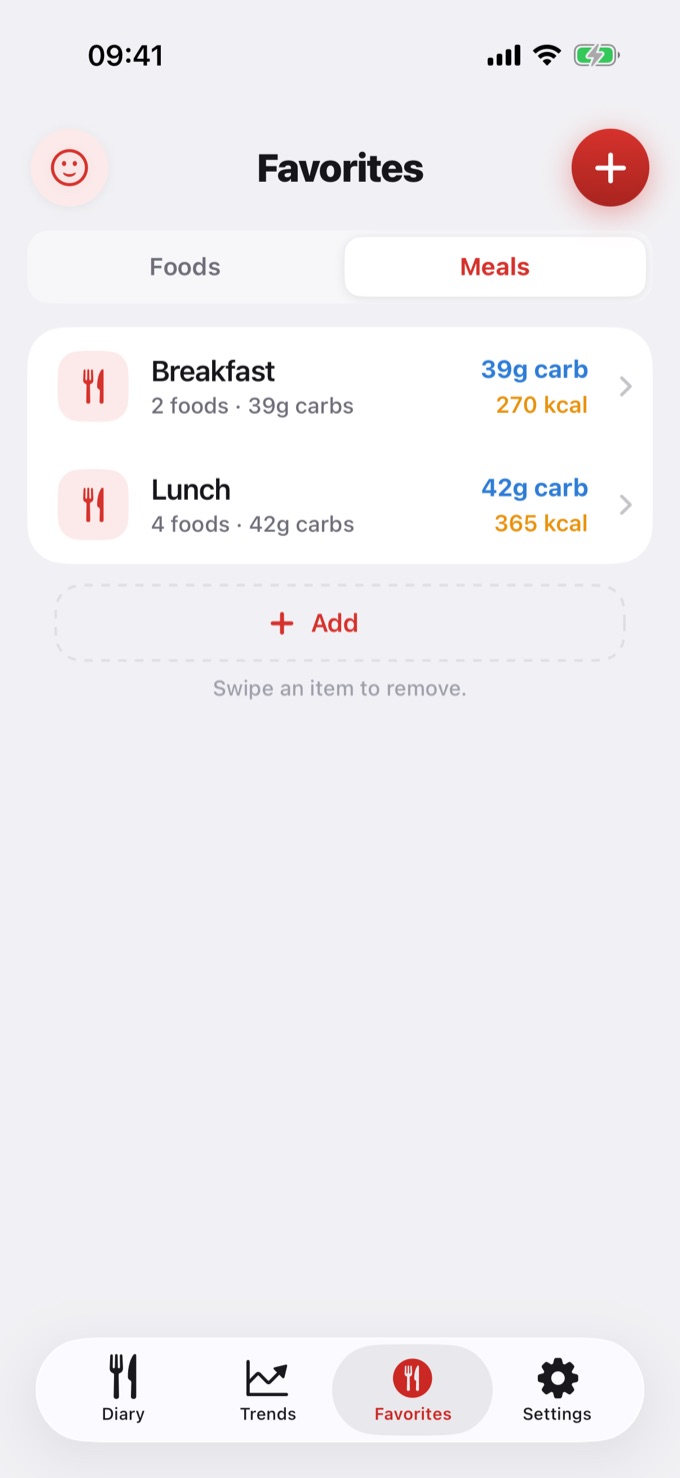
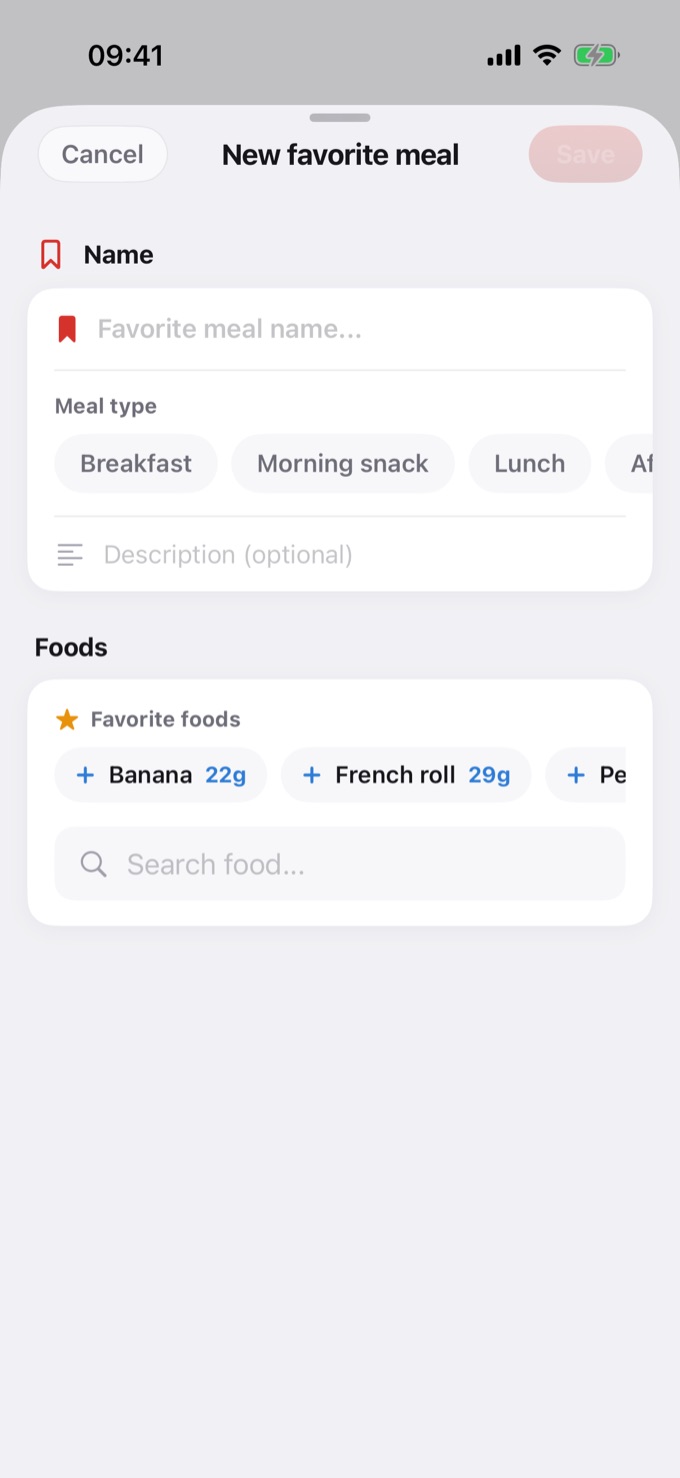
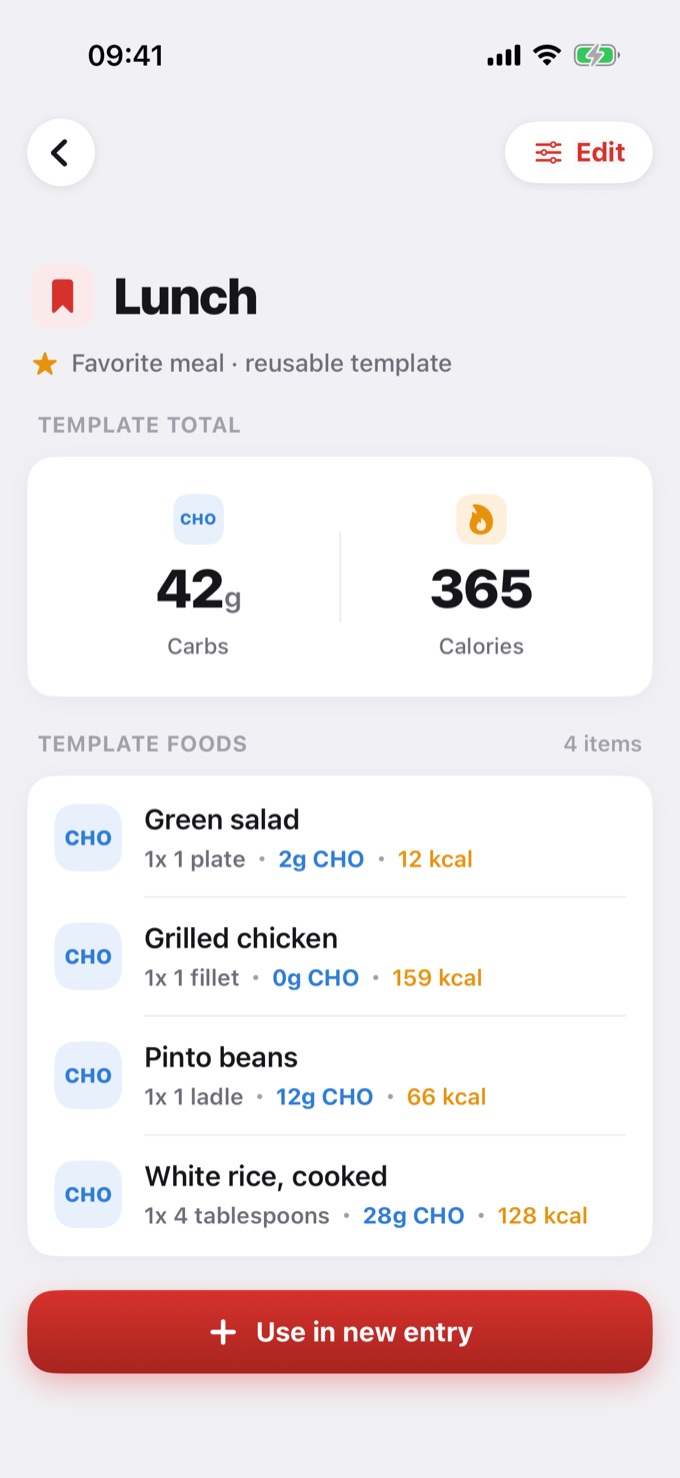
Tap a favorite meal to see its total and foods. From there you can also Edit it or use it right away with Use in new entry.
How to use a favorite meal when logging
- In the Diary, tap + to open a new entry.
- Under Foods and Carbs, tap Choose, next to Load favorite meal.
- Tap the favorite meal you want.
- All its foods are added to the entry, and the meal type is filled in.
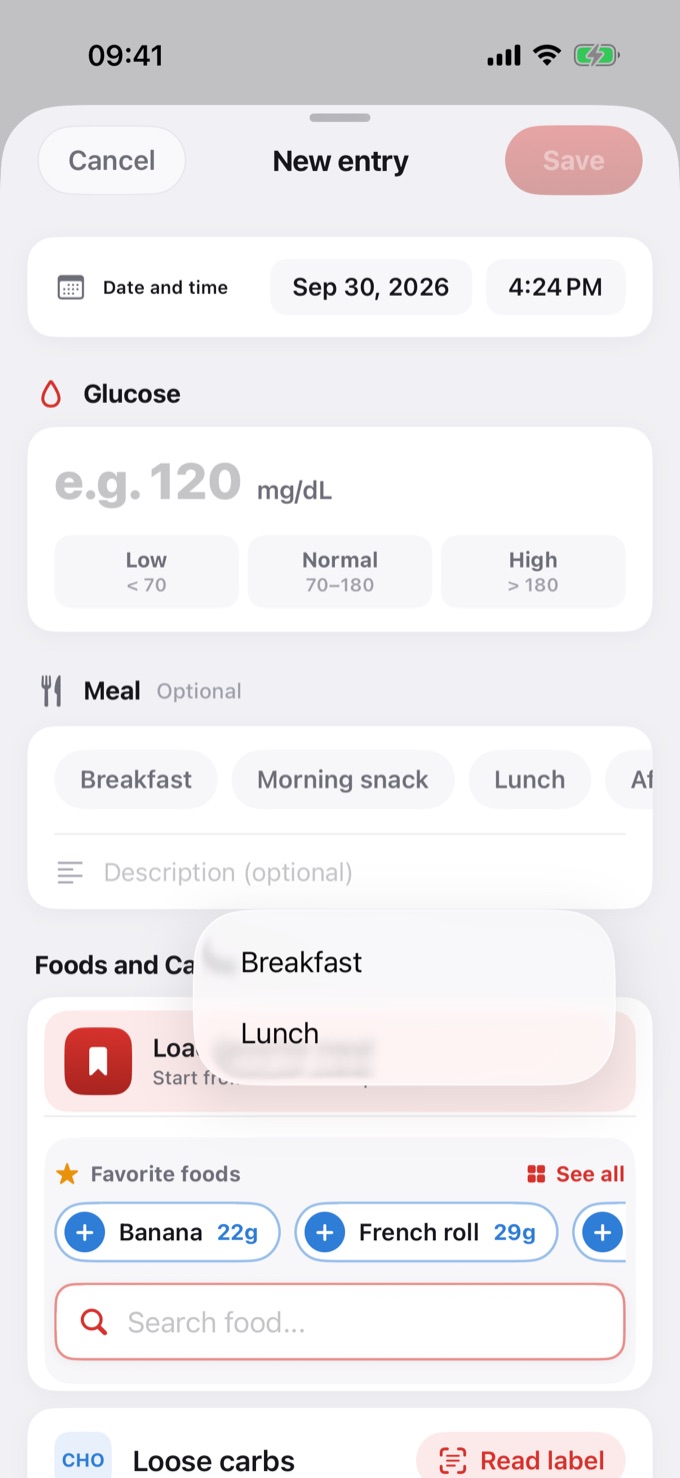
The entry's total carbs are the sum of the foods included.
Adjusting items while logging
Even when using a favorite meal, you control what you log:
| Action | How to do it |
|---|---|
| Change a food's amount | Tap the pencil next to the food and adjust the serving |
| Remove a food | Swipe the item aside |
| Add an extra food | Use the search as usual |
Changes made in the entry do not change the original favorite meal. They apply only to that entry.
Managing your favorite meals
| Action | How to do it |
|---|---|
| Edit a favorite meal | On the Meals tab, tap the meal and then Edit |
| Delete a favorite meal | Swipe the item aside |
Practical example
You create the favorite meal "Breakfast" with a French roll and coffee with milk. The next day:
- Open a new entry and load the "Breakfast" favorite.
- Both foods appear at once.
- If you ate two rolls today, adjust the amount with the pencil.
- Save: logged in seconds.
💡 Tip: create favorites for your most frequent combinations, like your weekday lunch or your usual breakfast.