What it is
Not every food is in the app's food database. With Create food, you add your own, with the measure you use day to day: 1 tablespoon, 1 slice, 1 sachet. You can fill in the values yourself or read them from the nutrition facts label with a photo.
Creating foods and reading labels are Diablesse Pro features.
How to create a food
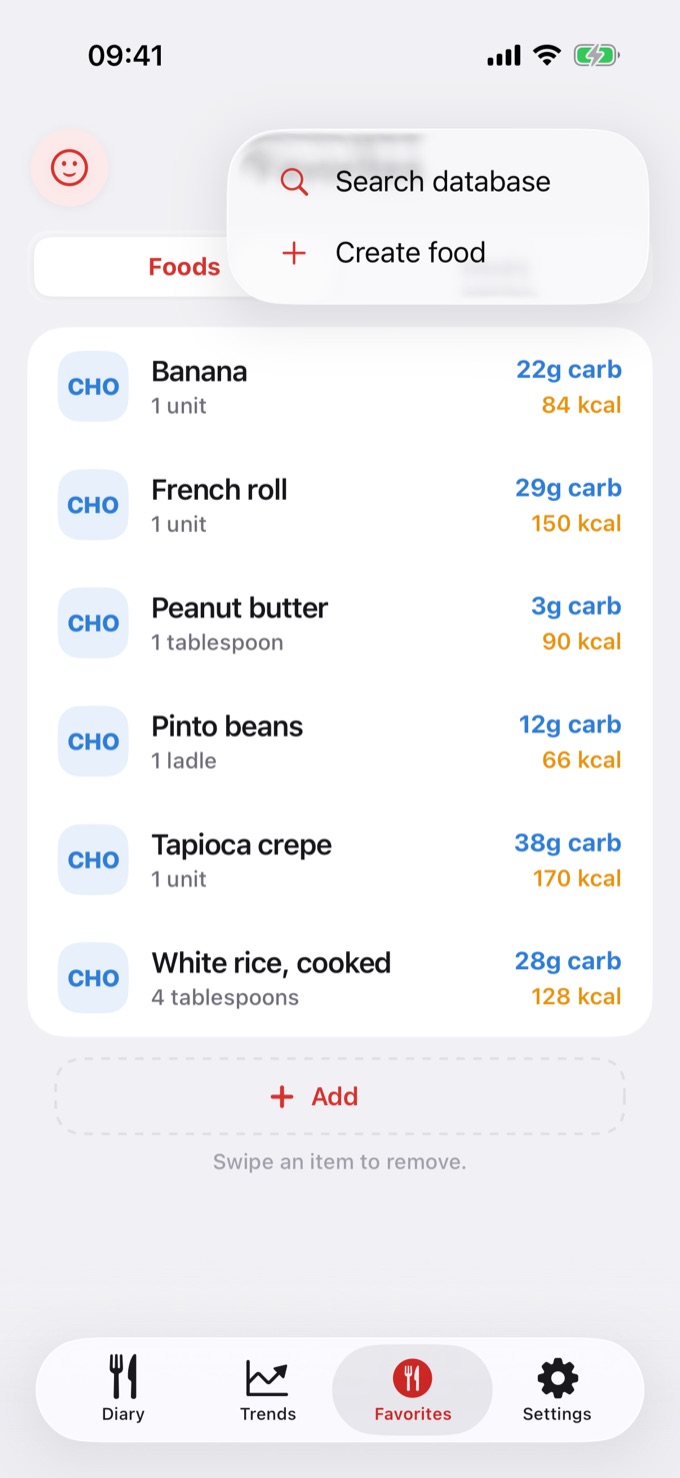
- In the bottom bar, tap Favorites.
- Tap + and choose Create food.
- Give the food a Name.
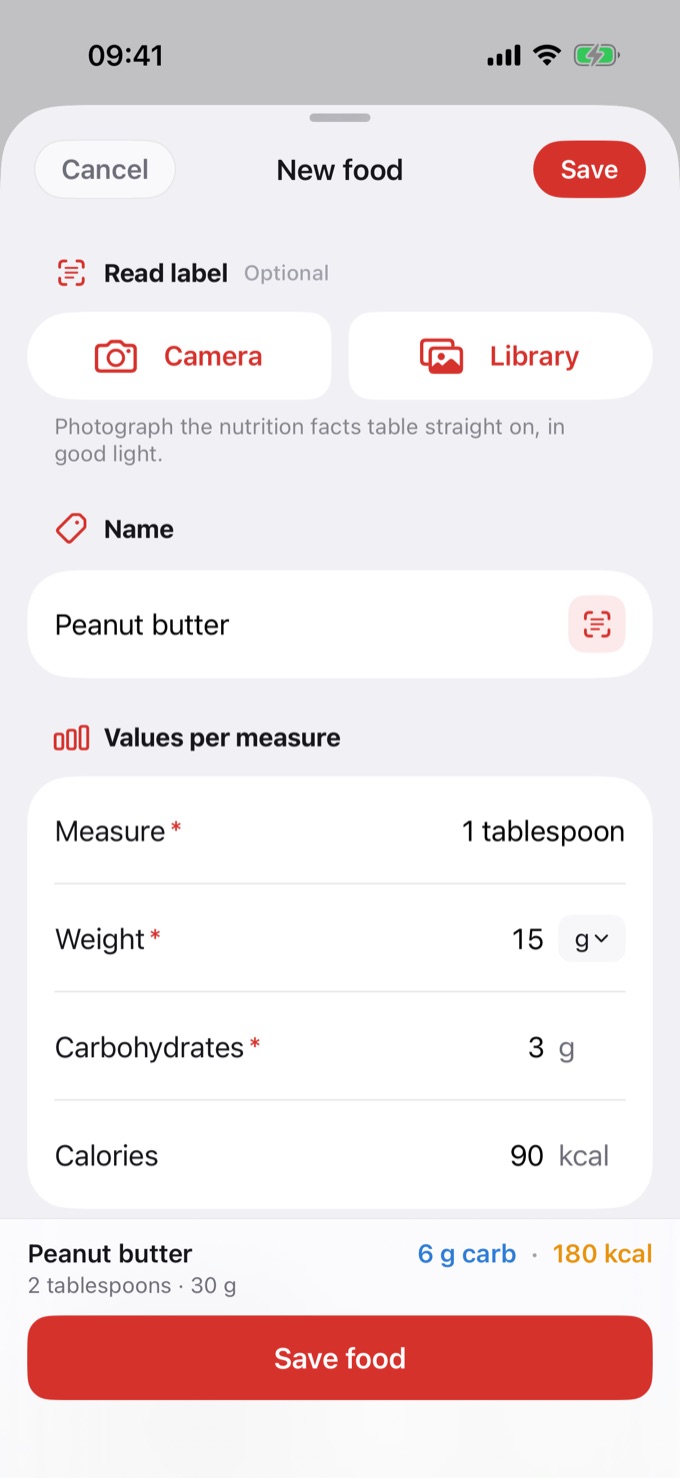
- Under Values per measure, enter the values for one measure, as shown on the label:
- Measure: how you measure it, for example "1 tablespoon".
- Weight: how much that measure weighs, in grams (g) or milliliters (ml).
- Carbohydrates: the grams of carbohydrate in that measure.
- Calories: optional. If left blank, the app estimates them from the carbs.
- Under Default serving, choose how the food is saved:
- Servings: in "Save as", set how many measures make up the serving. With 2, the food is saved as "2 tablespoons (30 g)".
- Amount: saves an amount in grams, for example 100 g.
- Check the summary at the bottom and tap Save food.
While a required field is missing, the bottom bar shows what's left, for example "Missing: name and weight".
The food you create shows up in Favorite foods and in the search of a New entry. It's personal: it stays in your account, syncs across your devices, and doesn't go into the app's public database.
Read the label with the camera
Instead of typing, let the app read the nutrition label:
- Under Read label, tap Camera to take a photo, or Library to use a photo already on your phone.
- The app reads the serving, carbs, and calories and fills in the fields.
- Check the values. If you see "Check the highlighted values", the fields with a yellow background need attention: compare them with the label and correct them if needed.
- Give it a name and tap Save food.
To fill in the name, tap the button next to the Name field and take a photo of the front of the package. The app suggests names read from the photo; tap one to use it.
Tips for a good reading
- Photograph the label straight on, in good light, with no glare.
- Keep the whole table in the photo, from the title to the last row.
- JPEG and HEIC photos from your library work.
- Reading has been tested with Brazilian labels. On labels from other countries it may not recognize the values; if so, fill them in yourself.
Add several foods at once
Have several products to add? Do it in a batch:
- Take the photos first: each product's label and, if you like, the front of the package.
- Under Read label, tap Library and pick up to 20 photos.
- The app opens one food at a time ("Label 1 of 5"). Check it, name it and save, or tap Skip.
- At the end, a summary shows how many were saved and skipped.
Photos of the front of the package become name suggestions for the label of the same product. The app matches them by the time the photo was taken, so photograph a product's front and label one right after the other.
Shortcut to create a food
To get to the create-food screen faster:
- iPhone: touch and hold the Diablesse icon and choose New food. The shortcut also appears in the Shortcuts app, and you can ask Siri: "New food in Diablesse".
- Android: touch and hold the Diablesse icon and choose New food.
Without Pro, the shortcut opens the Diablesse Pro screen.
Read the label in Loose carbs
Ate something that doesn't need to become a saved food? In a New entry, the Loose carbs card also has a Read label button: you read the label, enter how much to log, and the carbs go into the entry. See Loose carbs: description and saving as a food.
Privacy
Reading happens on your phone and works without internet. Photos are used only to read the values and are not kept by the app.
Frequently asked questions
The reading got a value wrong. What now? Correct the field before saving. Values with a yellow background are the ones the app is least sure about, so check those first.
The label only has the per 100 g column. Does it work? Yes. In that case, the food is filled in with the measure "100 g". If you prefer, change it to the measure you use and adjust the weight and values.
Can I add the same food with different measures? Yes. For example, "Peanut butter · 1 tablespoon" and "Peanut butter · 100 g". The app only warns you when a food with the same name and the same measure already exists.
What happens if I cancel Pro? The foods you created are not deleted. They become unavailable while the subscription is inactive and come back if you resubscribe.