How to use the Favorite Foods list
The favorite foods list was created to speed up filling in your diary. By favoriting the foods you eat most often, they'll appear highlighted on the meals screen, so you don't have to search for them again every time you log.
How to add a food to favorites
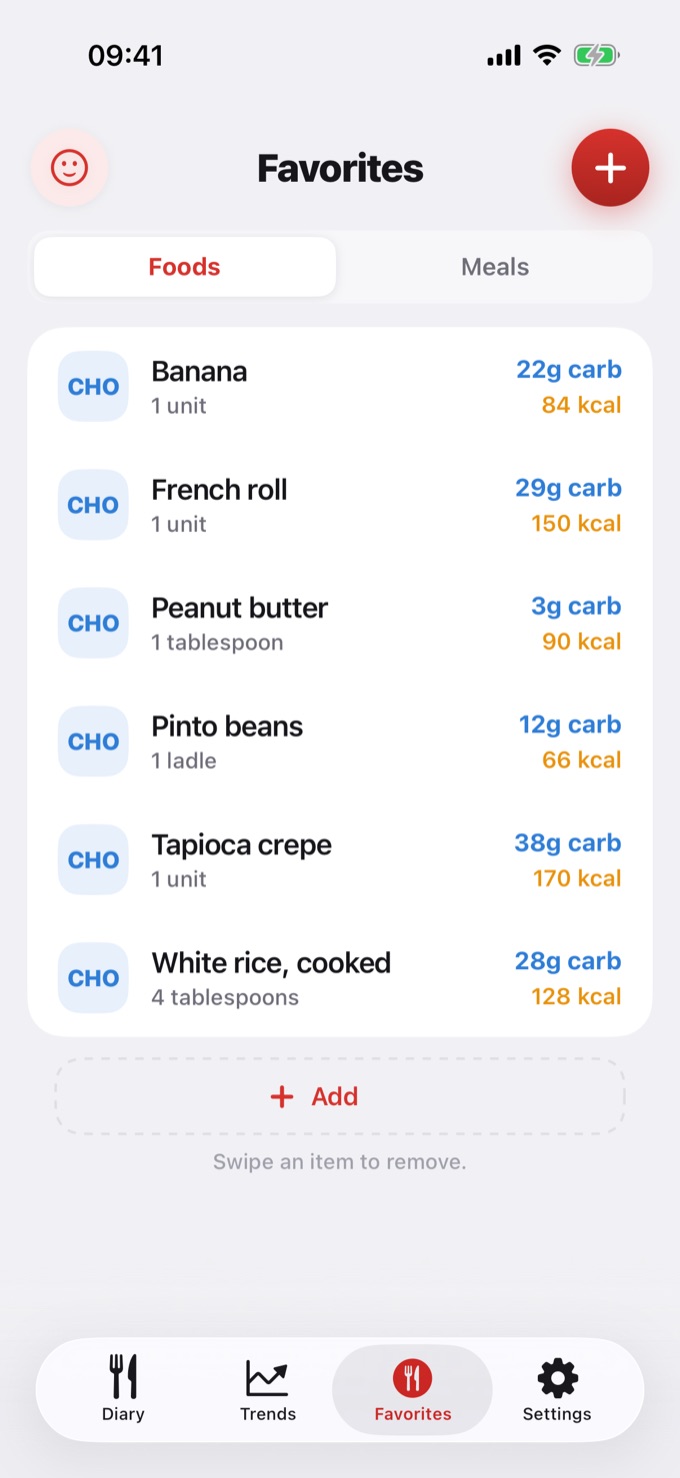
- Open the Favorites screen
In the app's bottom bar, tap the Favorites icon. - Add a new favorite
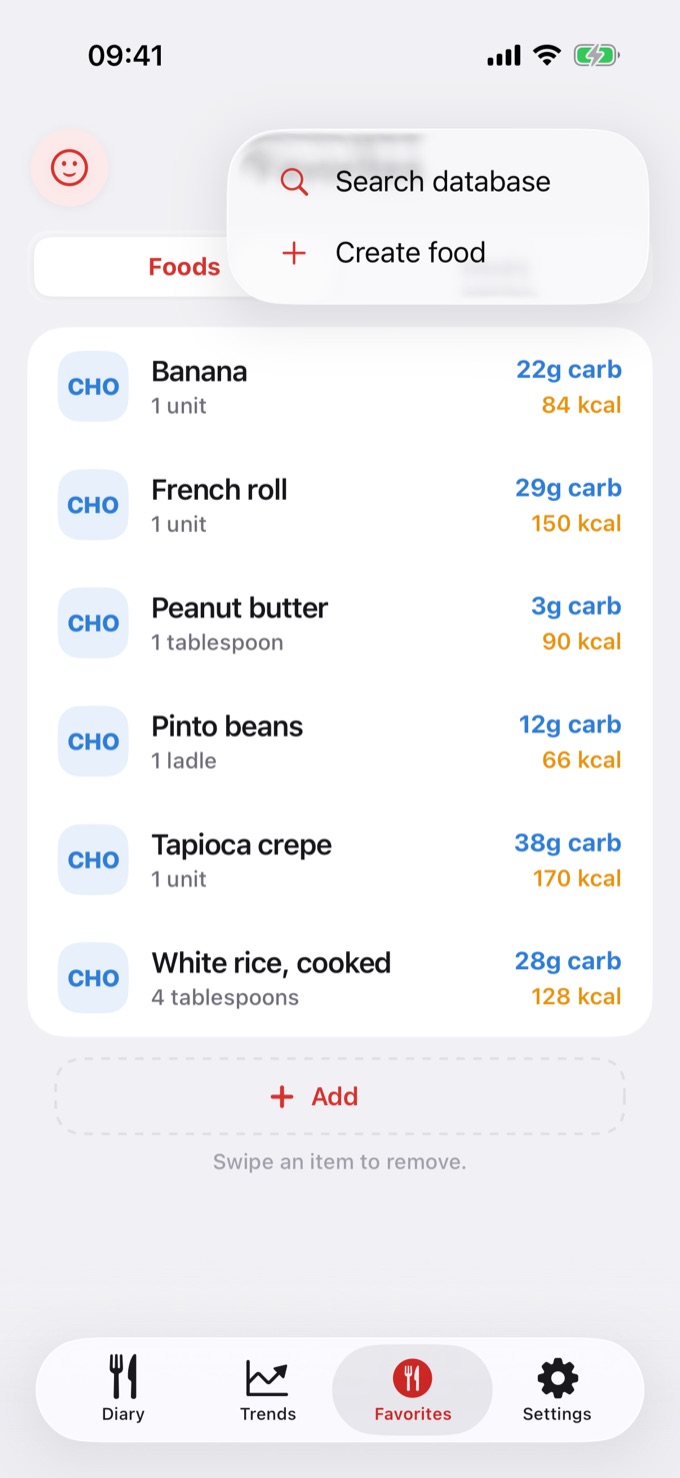
Tap the + (plus) sign in the corner of the screen and choose Search database. - Search for the food you want
Type the food name in the search field. The app queries the food database (already adapted to the language selected in settings). - Select the food
Tap the correct result. The food will be saved automatically to your favorites list.
Favorite foods are a Diablesse Pro feature.
Can't find the food in the database? In the same + menu, choose Create food to add your own, filling in the values or reading the nutrition label with the camera. See Create a food and read the label.
Where favorite foods appear
When you create a new diary entry (meal), favorite foods are shown first at the top of the food selection screen. That way you can add them quickly, without searching again.
Managing your favorites list
| Action | How to do it |
|---|---|
| Remove a favorite | On the Favorites screen, swipe the item aside |
| View all favorites | Open the Favorites screen anytime to see your complete list |
Practical example
If you usually eat rice, beans, chicken, and salad for lunch:
- Add each of these foods to favorites once
- When you log a new meal in the diary, they'll all appear at the top of the list
- Just select the ones you ate – no need to search