How to connect Apple Health (iOS) and Health Connect (Android)
Diablesse can exchange health data with your system's platform: Apple Health on iOS and Health Connect on Android. With the integration on, the app imports your workouts and sleep and keeps glucose in sync both ways.
What gets synced
| Data | Direction |
|---|---|
| Workouts (exercise) | Imported into your diary |
| Sleep | Imported into your diary |
| Glucose | Both ways: Diablesse reads glucose from the platform and writes yours to it |
Continuous glucose sensors
If your continuous glucose sensor sends readings to Apple Health or Health Connect, they reach Diablesse through this same integration. To keep your diary from filling up, the app stores one reading every 15 minutes: the most recent actual value in each interval, never an average. Glucose readings entered manually in the health platform are all kept.
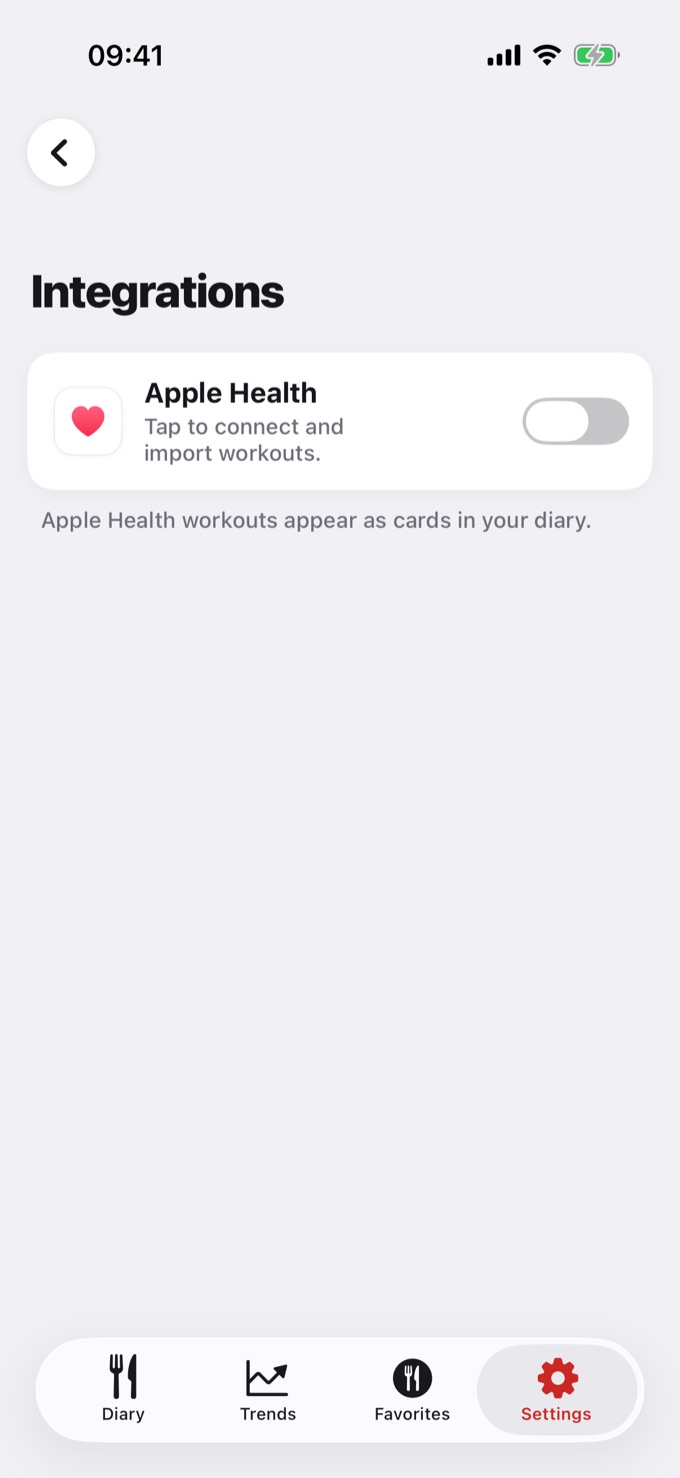
On iPhone (Apple Health)
- Go to Settings → Integrations
- Turn on the Apple Health toggle
- Grant the requested permissions (workouts, sleep, and glucose)
- Use each data type's toggle to choose what to sync
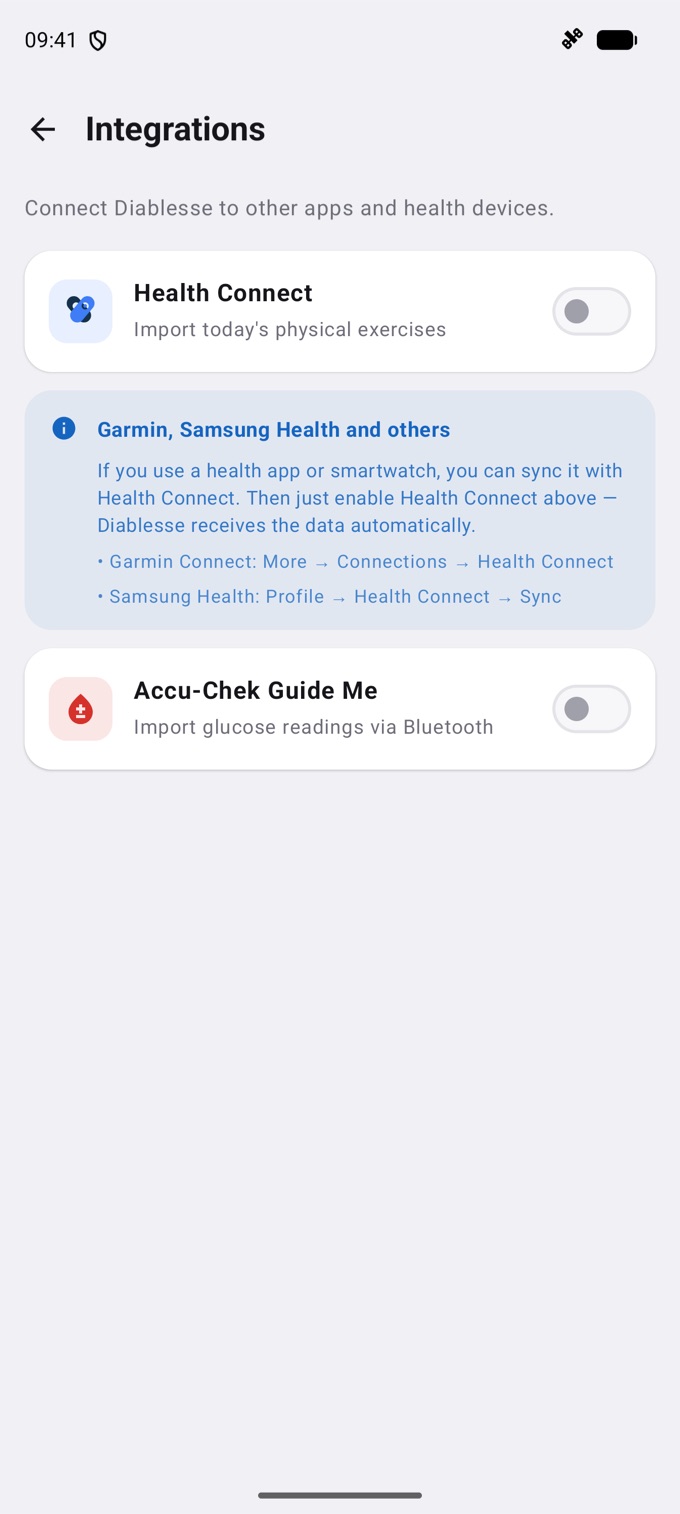
On Android (Health Connect)
- Go to Settings → Integrations
- Turn on the Health Connect toggle
- Grant the requested permissions in Health Connect
- Choose which data to sync
💡 Health Connect must be installed on your device. Learn more in the article How to connect Diablesse to other health apps.
Sync on app open / Sync now
- Turn on Sync on app open so data updates automatically whenever you open Diablesse.
- Or tap Sync now to update right away, with the app open.
Imported workouts appear as cards in your diary, and the activity and sleep data feed into the Trends screen.
🔒 Privacy: the data exchange happens locally, between Diablesse and your device's health platform, under permissions you grant and can revoke at any time in your system settings. Diablesse does not send this data to third-party servers.