How to export the PDF report
Diablesse creates a PDF report with the data from your diary: glucose, bolus, carbs, and the totals for the period. It's an easy way to show your history to your doctor.
The PDF report is a Diablesse Pro feature.
How to create it
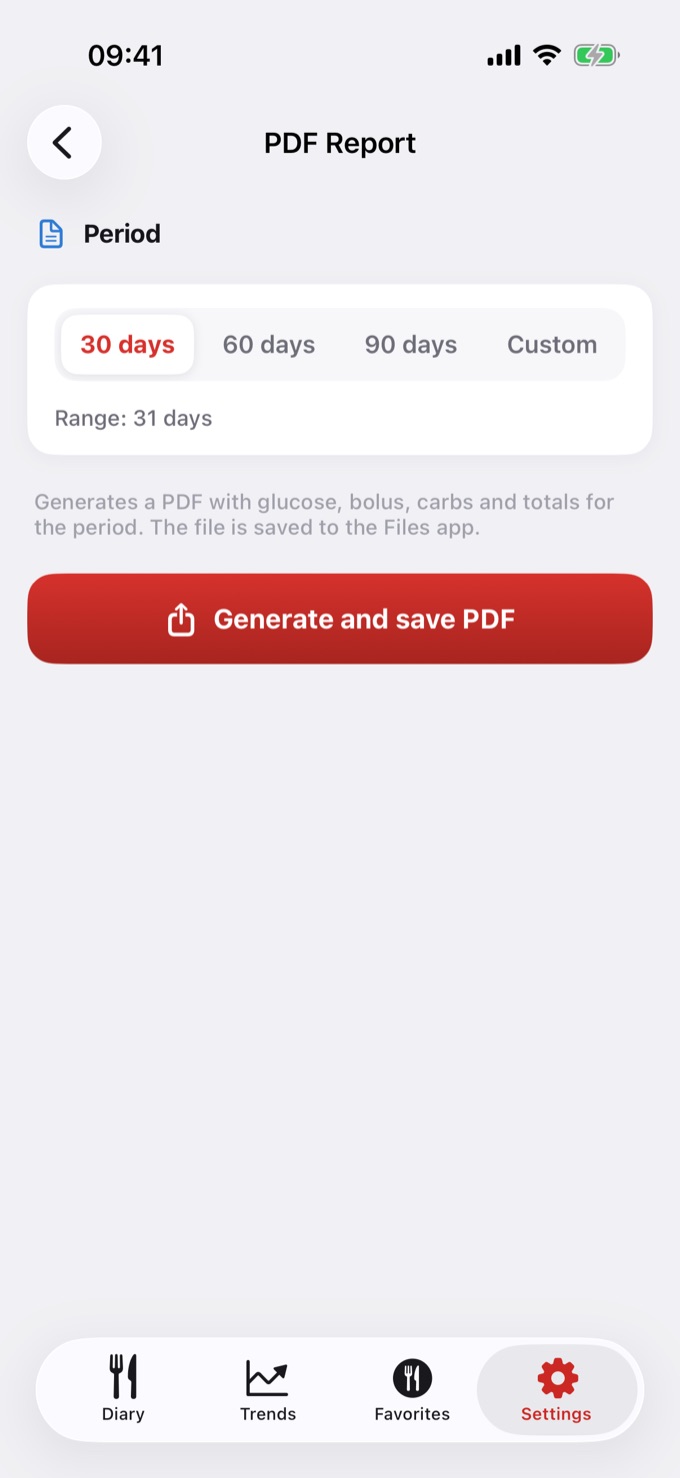
- Open Settings and tap PDF Report.
- Under Period, choose 30, 60, or 90 days, or Custom to pick the dates.
- Tap Generate and save PDF.
- Choose where to save it. On iPhone, the file goes to the Files app; on Android, you can save or share it.
📅 The maximum period is 180 days. For longer spans, create separate reports.
What's in the report
- Period summary: average, minimum, and maximum, estimated HbA1c, time in range, and variability
- Daily averages of bolus, carbs, and calories
- Day-by-day table and monthly totals
- Physical activity and sleep, if you connect Apple Health or Health Connect
Sharing with your doctor
Once the PDF is saved, you can send it by email or message, or show it right on your phone during the appointment.
💡 Tip: create the report a day or two before the appointment so the data is up to date.